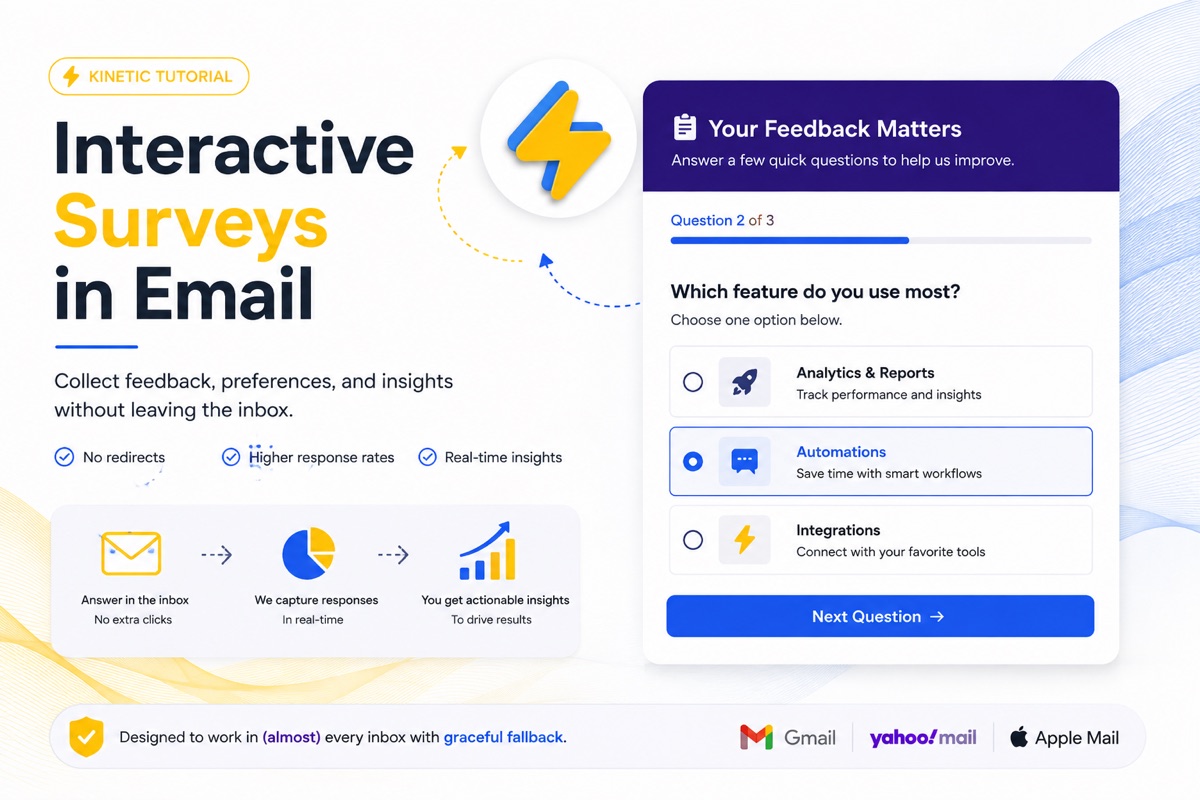
Interactive Surveys in Email
By Sean · February 16, 2026 · 6 min read
What if you could get survey responses without sending people to an external form? No Google Forms link. No SurveyMonkey redirect. Just tap your answers right there in the email.
Interactive surveys are one of the most powerful use cases for kinetic email. They reduce friction to almost zero — the subscriber sees the question, picks an answer, and moves on. No new tab, no loading screen, no "your session has expired."
The Friction Problem
Every click away from the email is a drop-off point. Studies consistently show that survey response rates plummet with each additional step between "I want to give feedback" and "I've submitted my feedback." An external survey link introduces at least three friction points: the click, the page load, and the context switch.
In-email surveys eliminate all three.
How It Works
The survey pattern builds on the same checkbox/radio button technique used in tabs and carousels, but adds progressive disclosure — answering one question reveals the next:
<!-- Question 1 -->
<input type="radio" id="q1-a" name="q1">
<input type="radio" id="q1-b" name="q1">
<input type="radio" id="q1-c" name="q1">

<div class="question question-1">
  <h3>How satisfied are you with our product?</h3>
  <label for="q1-a">Very Satisfied</label>
  <label for="q1-b">Satisfied</label>
  <label for="q1-c">Needs Improvement</label>
</div>

<!-- Question 2 (hidden until Q1 answered) -->
<div class="question question-2">
  <h3>What feature matters most to you?</h3>
  ...
</div>
The CSS Logic
The key insight is using the general sibling combinator to progressively reveal questions:
/* All questions after Q1 are hidden by default */
.question-2 { display: none; }
.question-3 { display: none; }

/* When any Q1 option is selected, show Q2 */
#q1-a:checked ~ .question-2,
#q1-b:checked ~ .question-2,
#q1-c:checked ~ .question-2 {
  display: block;
}

/* When any Q2 option is selected, show Q3 */
#q2-a:checked ~ .question-3,
#q2-b:checked ~ .question-3,
#q2-c:checked ~ .question-3 {
  display: block;
}
This creates a natural flow — the subscriber answers one question at a time, and each answer reveals the next. It feels like a guided conversation, not a form.
Live Example
Here's a working multi-question survey. Select your answers and watch the next question appear:
Capturing Responses
The interactive part happens in CSS, but actually collecting the data requires a bit more thought. Here are the common approaches:
Tracking Pixel Method
Each answer option loads a unique 1x1 tracking pixel via a CSS background image:
#q1-a:checked ~ .tracker .track-q1-a {
  background-image: url('https://track.example.com/survey?q1=very-satisfied');
}
When the radio button is checked, the browser loads the image URL, which logs the response server-side. No form submission required.
Link-Based Method
Each answer is an <a> tag instead of a <label>. Clicking it navigates to a tracking URL that records the response and redirects to a thank-you page. Less elegant but works in more email clients.
Hybrid Method
Use the CSS-powered survey for supported clients, with a fallback link to an external survey for everyone else. The lightswitch pattern handles this detection automatically.
Best Practices
- Keep it to 3–5 questions max. Inbox attention spans are short. If you need more, link to a full survey.
- Use clear, tappable labels. On mobile, answer options need to be at least 44px tall for comfortable tapping.
- Show progress. A simple "Question 2 of 3" indicator helps subscribers know how much is left.
- End with a thank you. After the last question, show a confirmation message using the same CSS technique.
- Respect the fallback. In non-supporting clients, show a single CTA linking to the survey externally.
The tracking pixel method for capturing responses depends on the email client loading images. Some clients block images by default, which means responses won't be recorded until the subscriber enables images. Always have a fallback collection method.
Use Cases
Interactive surveys work great for:
- Post-purchase feedback — "How was your experience?" immediately after delivery
- NPS surveys — single-question Net Promoter Score with optional follow-up
- Content preferences — "What topics do you want to hear about?"
- Event feedback — quick pulse surveys after webinars or conferences
- Product prioritization — "Which feature should we build next?"
The key is matching the survey complexity to the channel. Email surveys should be quick, focused, and feel effortless. Save the 20-question deep dives for dedicated survey tools — and use the in-email survey to get the conversation started.